Using a pretty nifty trick you can reset a forgotten Mac password without a Mac OS X installer CD/DVD. The steps may seem a little intimidating at first but I assure you it’s easy if you follow them exactly, here is exactly how to do this in three stages:
Stage 1) Boot into Single User Mode and remove a setup file
•Restart the Mac holding down the Command+S keys, this will take you into Single User Mode and it’s Terminal interface
•You’ll need to check the filesystem first:
fsck -fy
•Next, you must mount the root drive as writeable so that changes will save:
mount -uw /
•Now, type the following command exactly, followed by the enter key:
rm /var/db/.applesetupdone
•After removing the applesetupdone file, you need to reboot, type ‘reboot’ and hit enter
Showing posts with label Apple. Show all posts
Showing posts with label Apple. Show all posts
Thursday, April 5, 2012

Thursday, July 21, 2011
MacBook Pro : Print Black and White in Any Application
Unfortunately, only the Preview application allows for grayscale printing (at least on my macbook pro). Take these steps to allow you to print in black and white in any application.
1) When you press Print in any application, you will have an option of "Preview" that is close to bottom left. Click on the Preview button.
2) This will open the document in Preview (the software program) as a PDF. Now click File > Print.
3) There should be a dropdown menu where "Preview" is currently selected. Click the dropdown menu and select "Quality & Media."
4) A checkbox titled "Grayscale Printing" should appear at the bottom. Check this box.
5) Push Print
1) When you press Print in any application, you will have an option of "Preview" that is close to bottom left. Click on the Preview button.
2) This will open the document in Preview (the software program) as a PDF. Now click File > Print.
3) There should be a dropdown menu where "Preview" is currently selected. Click the dropdown menu and select "Quality & Media."
4) A checkbox titled "Grayscale Printing" should appear at the bottom. Check this box.
5) Push Print
Wednesday, March 2, 2011
iPhone : Connecting to the Internet via USB
On your computer.
1.Install iTune on your computer.
On your iPhone.
1. Click the Setting icon.

2. Click General button.

3. Click Network button.

3. Click Internet Tethering button.

4. Switch On the Internet Tethering button.

5. Click USB Only button.

6. Finish.

1.Install iTune on your computer.
On your iPhone.
1. Click the Setting icon.

2. Click General button.

3. Click Network button.

3. Click Internet Tethering button.

4. Switch On the Internet Tethering button.

5. Click USB Only button.
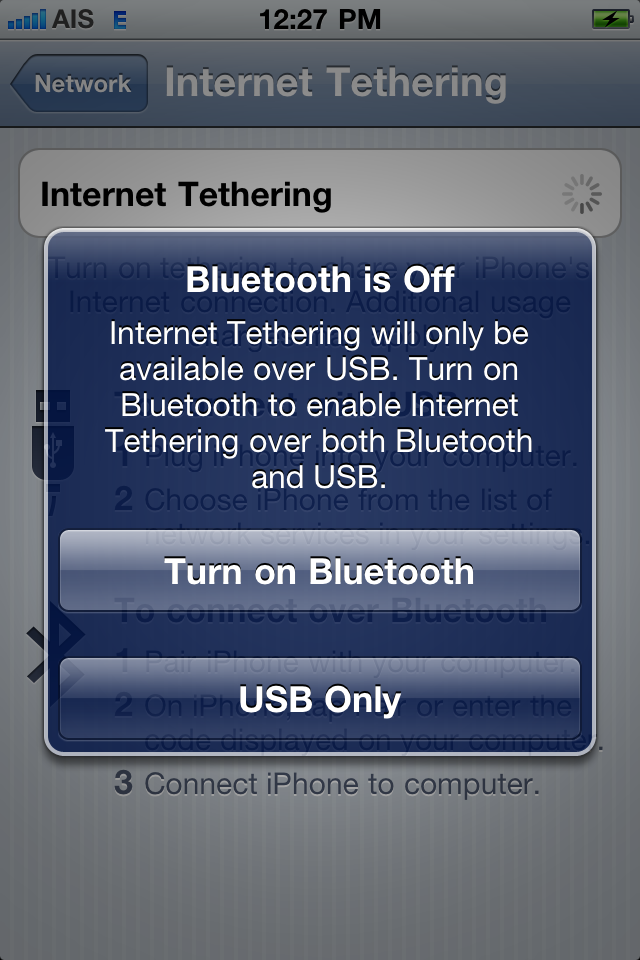
6. Finish.

Tuesday, February 15, 2011
iPhone, iPod Touch and iPad : How to Take Screen Shot on iPhone
Just press and hold the "Home" button, then press and release the"Sleep" button on the top of the phone. The image is added to your camera roll.
Friday, December 24, 2010
iPhone , iPod , iPad : Backup location
iPhone Backup Location for Mac OS X
in Mac OS X your iPhone files are backed up at the following location:
~/Library/Application Support/MobileSync/Backup/
The (~) symbol signifies your home directory, which is the same place all your other personal documents are stored.
iPhone Backup Location for Windows 7, XP, and Vista
Windows XP stores all of your iPhone backup files in this location:
C:\Documents and Settings\user\Application Data\Apple Computer\MobileSync\Backup
Windows Vista and Windows 7 backs up the iPhone files to here:
C:\Users\user\AppData\Roaming\Apple Computer\MobileSync\Backup
Obviously if your main drive is not C: then you’ll have to change that, same goes for ‘user’
in Mac OS X your iPhone files are backed up at the following location:
~/Library/Application Support/MobileSync/Backup/
The (~) symbol signifies your home directory, which is the same place all your other personal documents are stored.
iPhone Backup Location for Windows 7, XP, and Vista
Windows XP stores all of your iPhone backup files in this location:
C:\Documents and Settings\user\Application Data\Apple Computer\MobileSync\Backup
Windows Vista and Windows 7 backs up the iPhone files to here:
C:\Users\user\AppData\Roaming\Apple Computer\MobileSync\Backup
Obviously if your main drive is not C: then you’ll have to change that, same goes for ‘user’
Friday, December 17, 2010
iPhone 4 : Passcode Lock
1.
Press Setting icon.

2. General button.

3. Passcode Lock botton

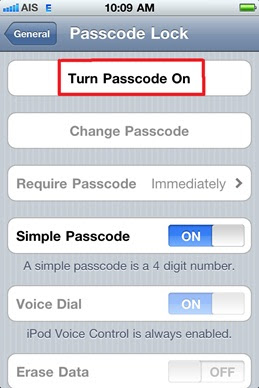
4. Turn Passcode On button
5. Enter a Passcode
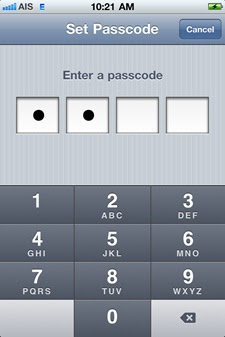
6. Re-enter your Passcode

Press Setting icon.

2. General button.
3. Passcode Lock botton
4. Turn Passcode On button

5. Enter a Passcode

6. Re-enter your Passcode

7. Done.
Tuesday, November 16, 2010
iOS : White Apple Logo Screen of Death

1. Press and hold Sleep/Wake and Home until the iPhone resets.
2. When the Apple logo appears release Sleep/Wake. Do not release Home until you see the prompt to connect the iPhone/iPod Touch to iTunes.
You will then need to update the firmware, and proceed with restoring all of your applications and settings.
2. When the Apple logo appears release Sleep/Wake. Do not release Home until you see the prompt to connect the iPhone/iPod Touch to iTunes.
You will then need to update the firmware, and proceed with restoring all of your applications and settings.
Thursday, November 11, 2010

Monday, November 8, 2010
MacBook Air : What's in the box ?
- 11-inch MacBook Air
- 45W MagSafe power adapter, AC wall plug, and power cord
- Printed and electronic documentation
- Software Reinstall Drive


Thursday, October 28, 2010
Apple iPad : VNC Viewer for iPhone, iPad and iPod touch

VNC Viewer connects your iPhone, iPad or iPod touch to a computer anywhere in the world.

Monday, June 28, 2010
Iphone 4 : What's new

What's new
• Front-facing video chat camera
• Improved regular back-camera (the lens is quite noticeably larger than the iPhone 3GS)
• Camera flash
• Micro-SIM instead of standard SIM (like the iPad)
• Improved display. It's unclear if it's the 960x640 display thrown around before—it certainly looks like it, with the "Connect to iTunes" screen displaying much higher resolution than on a 3GS.
• What looks to be a secondary mic for noise cancellation, at the top, next to the headphone jack
• Split buttons for volume
• Power, mute, and volume buttons are all metallic
Subscribe to:
Posts (Atom)